






How to Set Up YouTube Live Streaming with the SJCAM C400
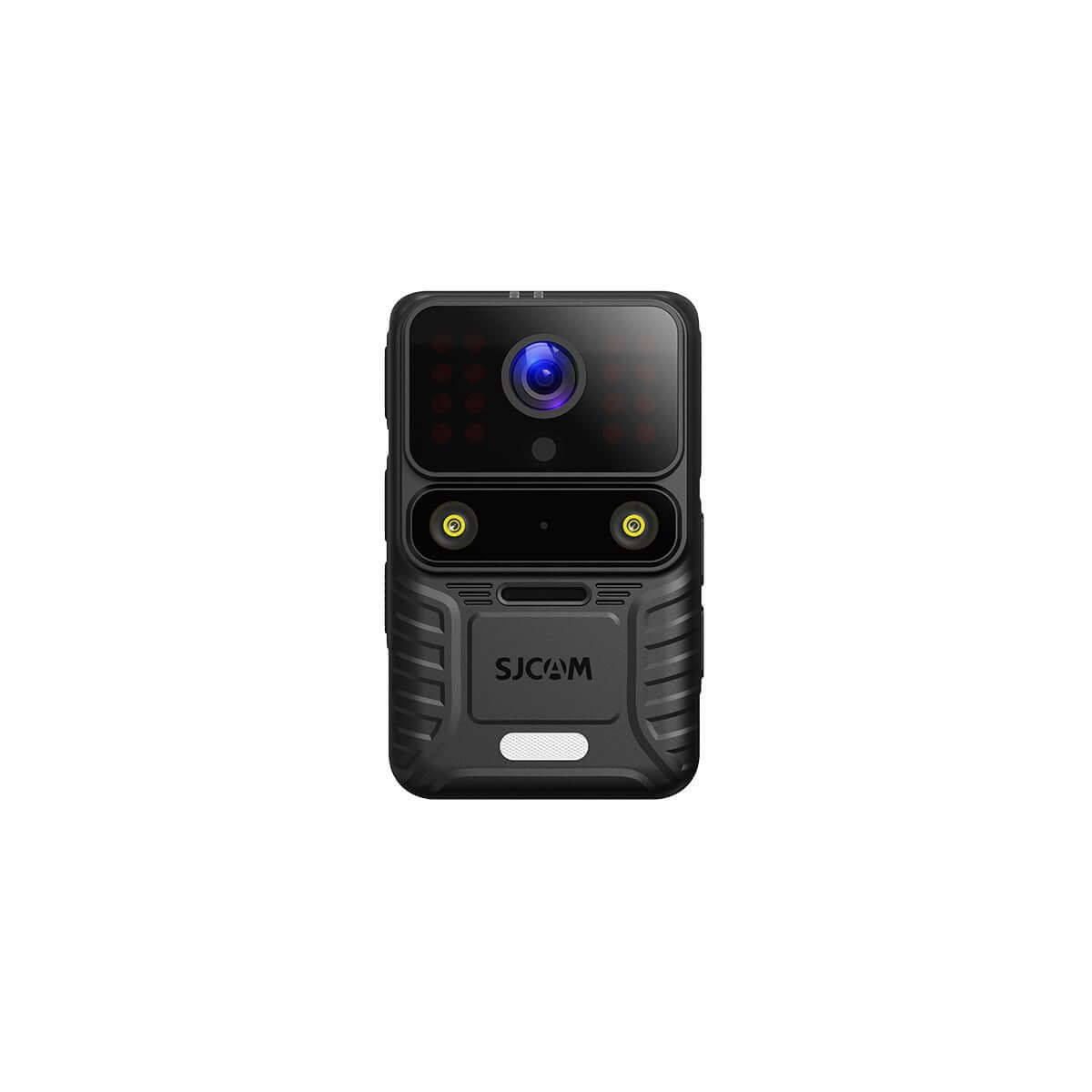
The SJCAM C400 is a versatile 4K action camera that supports direct live streaming to YouTube via RTMP. This guide explains exactly how to configure YouTube Live Streaming on the C400 using the official SJCAM X App, based on the manufacturer’s tutorial.
Whether you are streaming outdoor activities, vlogs, events, or travel content, the process is straightforward once you complete the required preparations.
Prerequisites Before You Start
Before beginning the setup, prepare the following:
- Download and install the SJCAM X App on your smartphone (available on the App Store and Google Play).
- Ensure a stable Wi-Fi network with sufficient upload speed (recommended minimum 5–10 Mbps).
- Obtain the RTMP streaming address (server URL + stream key) from YouTube.
- Fully charge the SJCAM C400 and insert a compatible microSD card.
- Confirm that your YouTube account has live streaming permissions enabled.
How to Get the YouTube RTMP Address
- Go to YouTube Studio → Create → Go Live.
- In the stream settings, copy the Stream URL and the Stream Key.
- Combine them into the full RTMP address required by the SJCAM X App.
Step-by-Step Setup Instructions
Step 1: Enter the RTMP Streaming Address in the SJCAM X App
- Open the SJCAM X App.
- Navigate to the Live Streaming section.
- Paste or manually enter the full RTMP address obtained from YouTube.
- Confirm the address is correct and tap Next.
Step 2: Connect to a Wi-Fi Network
- Android users: Tap “Change Network,” select the desired Wi-Fi network from the list, enter the password, and proceed.
- iPhone users: Manually enter the Wi-Fi network name (SSID) and password in the designated fields, then continue.
A stable connection is essential because the camera uses this Wi-Fi network to push the live stream.
Step 3: Pair the Camera via QR Code
- Power on the SJCAM C400.
- Press the Mode button and switch to Live Streaming Mode.
- Use the camera to scan the QR code displayed in the SJCAM X App.
- Wait for the connection to establish. Once successful, the C400 will begin streaming (and usually recording locally at the same time).
The live feed should now appear in your YouTube Live control room.
Tips for Better Streaming Quality
- Prefer 1080p at 30 fps for most situations. Higher resolutions (such as 4K) require significantly more bandwidth and increase the risk of buffering.
- Use a 5 GHz Wi-Fi network when possible to reduce interference.
- Test the stream for 30–60 seconds before going fully live.
- Keep the camera and phone relatively close during the initial pairing process.
- Ensure the SJCAM X App and camera firmware are up to date.
FAQ
Does the SJCAM C400 support direct YouTube Live Streaming?
Yes. The C400 supports RTMP-based live streaming to YouTube through the SJCAM X App.
Which app should I use—SJCAM X or SJCAM Zone?
According to the official tutorial for this model, use the SJCAM X App for RTMP live streaming setup.
What should I do if the QR code scan fails?
Restart the camera and the app, double-check the Wi-Fi credentials, move closer to the router, and ensure both devices are updated.
Can I stream to platforms other than YouTube?
Any platform that provides a standard RTMP URL and stream key can generally be used with the same method.
Summary
Setting up YouTube Live Streaming on the SJCAM C400 involves three main stages:
- Enter the RTMP address in the SJCAM X App.
- Connect the phone (and subsequently the camera) to a stable Wi-Fi network.
- Switch the C400 to Live Streaming Mode and scan the QR code.
Following these steps allows you to start live broadcasting quickly and reliably. This guide is based on the official SJCAM tutorial video “How to Set Up YouTube Live Streaming Using SJCAM C400.”
For the best results, always test your setup in advance and monitor network conditions during the stream.


