




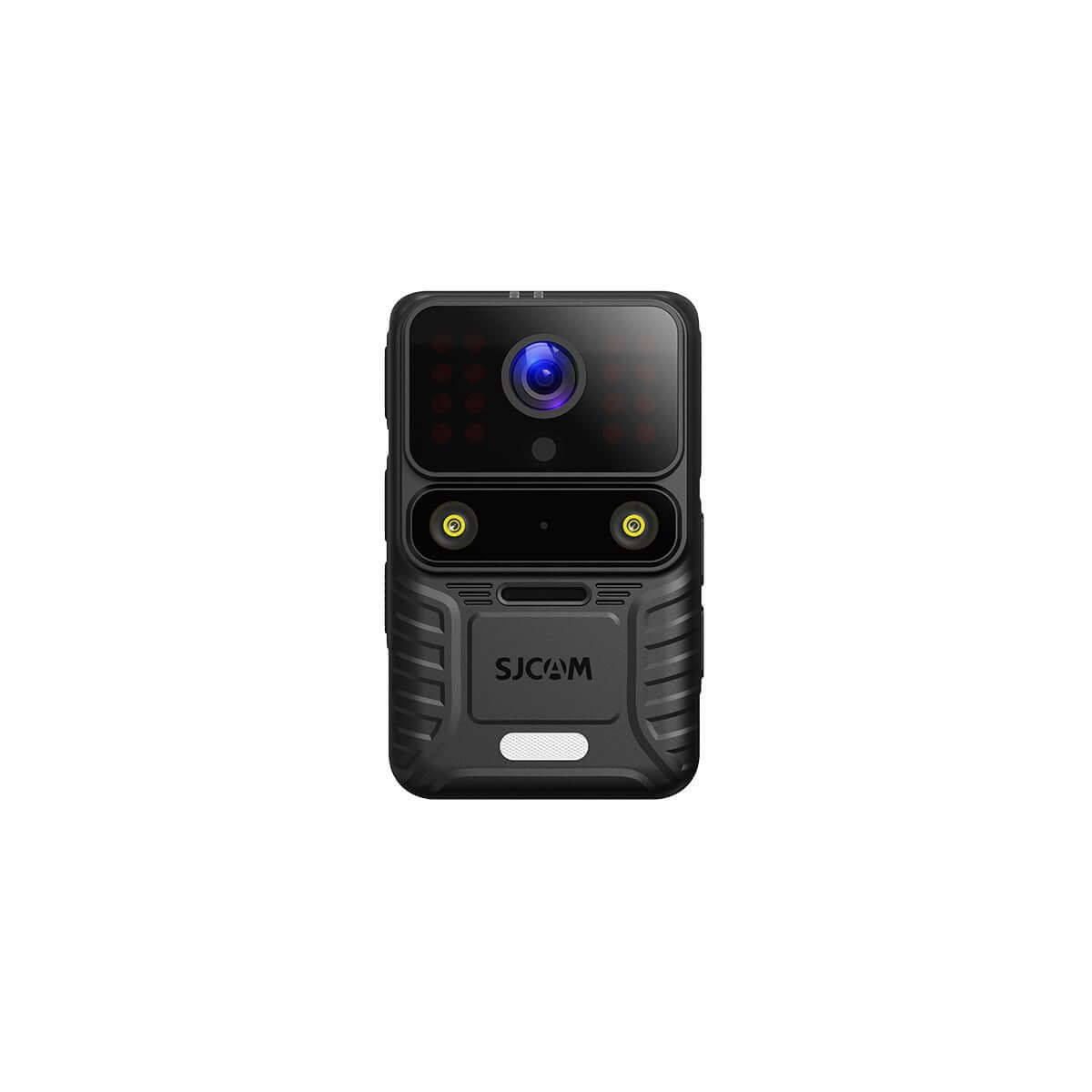


How to Use the SJCAM X App with C100 Pro: Full Guide
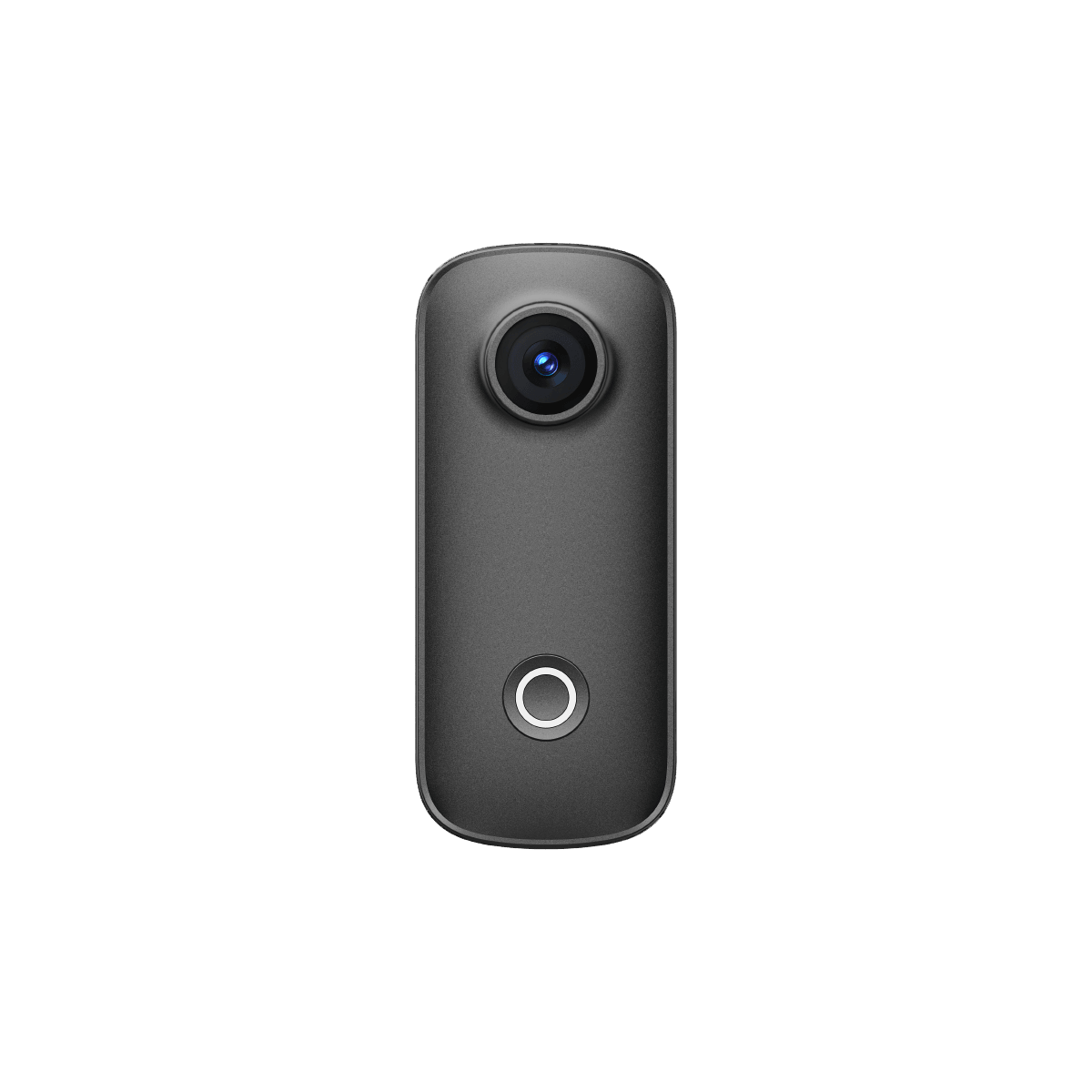
The SJCAM X app is the official companion application for the SJCAM C100 Pro action camera. Once the camera is connected, the app allows users to control recording, preview footage in real time, download files, start live streams, update firmware, and access support resources directly from a smartphone.
This guide explains the four main sections of the SJCAM X app and how to use each one effectively with the C100 Pro.
Note: The camera must be successfully paired with the app before using these features. For connection instructions (Bluetooth or Wi-Fi), refer to the dedicated setup guide.
1. Camera Shooting Page – Remote Control and Live View
After a successful connection, the app automatically opens the Camera Shooting page. This is the main control interface.
Key functions include:
- Live view: See exactly what the camera sees in real time.
- Shutter button: Tap to start or stop video recording or to take a photo.
- Mode switching: Swipe left or right on the screen to switch between video and photo modes. Additional shooting modes are available by tapping the camera icon.
- Resolution adjustment: Tap the resolution icon in the top right corner to change video or photo resolution. Higher resolutions produce larger file sizes.
- Settings access: Tap the settings icon to adjust parameters for the current mode, including image settings and system settings.
- Playback shortcut: Tap the icon in the bottom left corner to review recently captured photos and videos.
It is normal for the camera temperature to rise during extended recording sessions.
2. Playback Page – Download and Manage Files
The Playback page displays all photos and videos stored on the camera.
Users can:
- Tap any file to open a preview.
- Download individual files directly to the smartphone for quick editing or social media sharing.
- Delete single files using the delete button.
- Enable batch selection to download or delete multiple files at once.
This section is particularly useful for transferring footage without removing the microSD card.
3. Live Streaming Page – How to Go Live
The Live Streaming page allows the C100 Pro to be used for live broadcasts.
To start a stream:
- Open the Live Streaming page in the app.
- Follow the on-screen instructions to connect to the desired streaming platform.
- Refer to the in-app live streaming tutorial if additional guidance is needed.
Once configured, the camera can transmit live video through the app. A stable internet connection on the smartphone is required for reliable streaming performance.
4. Settings Page – Firmware Updates and Support
The Settings page provides essential maintenance and support tools:
- Firmware Update: Check for and install the latest firmware. Keeping the camera updated is recommended for optimal performance and new features.
- Support: Access the official SJCAM website for technical assistance.
- Help: View supported devices, tutorial videos, privacy policy, and user agreement.
Some features on this page require an active internet connection.
Additional Tips for Using the SJCAM X App
- The app supports connection to only one device at a time.
- To connect a different camera, power off the current device and follow the pairing process again (Bluetooth or QR code).
- The camera can be powered off remotely through the app by entering the Camera page, opening settings, and selecting the power-off option.
- For the most stable experience, keep both the app and camera firmware up to date.
Frequently Asked Questions
How do I download videos from the C100 Pro to my phone?
Open the Playback page in the SJCAM X app, select the desired file, and tap the download button.
Can I live stream with the SJCAM C100 Pro?
Yes. Use the Live Streaming page in the SJCAM X app and follow the on-screen platform connection steps.
Why should I update the firmware?
Firmware updates improve performance, fix issues, and may add new features. It is best practice to keep the camera updated.
Can the app control more than one camera at the same time?
No. The SJCAM X app connects to only one device at a time.
What should I do if the live view does not appear?
Confirm that the camera is properly connected via Bluetooth or Wi-Fi, restart both the camera and the app, and try pairing again.
Final Notes
The SJCAM X app turns the C100 Pro into a more flexible tool by enabling remote control, quick file transfers, live streaming, and easy maintenance. Understanding the four main pages—Camera Shooting, Playback, Live Streaming, and Settings—allows users to get the most out of the camera in everyday shooting situations.
For the best results, pair the camera correctly first, keep the firmware current, and use the Playback page to transfer important footage regularly.


