






SJCAM SJ6 Ultra Setup Guide: App Pairing, Vertical Mode & Advanced Features
The SJCAM SJ6 Ultra is a versatile dual-screen action camera designed for creators who want sharp 4K footage, reliable stabilization, and flexible shooting options. Whether you just unboxed your camera or want to unlock its full potential, this complete setup guide walks you through everything—from inserting the battery to pairing the SJCAM X app, enabling lossless vertical shooting, connecting the M4 wireless microphone, and using the waterproof case correctly. Follow these steps and you’ll be ready to shoot in minutes.
First-Time Setup: Battery and microSD Card
Start by installing the battery and memory card.
- Press the battery cover with your thumb and slide it downward. The cover will pop open automatically.
- Insert the battery following the arrow direction shown inside the compartment.
- Close the cover and push it upward until you hear a click.
- Insert a compatible microSD card (sold separately) in the correct orientation as indicated on the camera.
Once the battery and card are installed, press the power button to turn the camera on. You’re now ready for basic operation.

Basic Operations and Touchscreen Controls
The SJ6 Ultra uses a simple button and touchscreen combination:
- Press the shutter button once to take a photo.
- Press the shutter button again to start or stop video recording.
- Press and hold the shutter button to switch between the main rear screen and the front screen (useful for selfies and vlogging).
- Swipe down on the touchscreen to open the Control Center. From here you can access playback, Wi-Fi, and other quick settings.
- Swipe up to return to the shooting interface.
- Tap the mode icon at the bottom to switch between photo, video, and other shooting modes.
- Use the icons in the bottom corners to adjust image settings or enter system settings.
In the Control Center you can also adjust screen brightness, lock the screen to prevent accidental touches, turn the indicator light on or off, select stabilization modes, and enable audio noise reduction for clearer sound.

How to Connect the SJ6 Ultra to the SJCAM X App (3 Methods)
The SJCAM X app gives you live view, remote control, file transfer, and access to more settings. The camera supports three connection methods.
Method 1: Bluetooth
- Turn on Bluetooth on your phone.
- Open the SJCAM X app and tap “Connect Camera.”
- The app will search for nearby devices. Select your SJ6 Ultra.
- When the live view appears, the connection is successful.
Method 2: QR Code
- On the camera, swipe down to open the Control Center and turn on Wi-Fi. A QR code will appear.
- In the SJCAM X app, tap “Scan QR Code” and point your phone at the camera screen.
- Tap “Join” when prompted.
- The live view confirms a successful connection.
Method 3: Manual Wi-Fi
- Turn on Wi-Fi on your phone.
- Select the network that starts with “SJ6 Ultra.”
- Enter the password: 12345678.
- Return to the SJCAM X app and tap “Enter Camera.”
- Live view means you’re connected.
Enable Lossless Vertical Shooting
For native vertical content (ideal for TikTok, Instagram Reels, and Shorts):
- Tap the image settings icon.
- Find the option called “Non-destructive Vertical Screen” or “Lossless Vertical Shooting.”
- Toggle it on.
- The camera view will automatically rotate 90 degrees for vertical recording.
To return to landscape mode, simply turn the option off again.
Pairing the M4 Wireless Microphone

Clearer audio makes a big difference in vlogs and outdoor videos.
- Go to System Settings on the camera and find the Wireless Microphone option.
- Tap the switch to start searching.
- Press and hold the pairing button on the M4 microphone until the indicator light flashes green.
- When the light stops flashing, the microphone is successfully paired.
You can now record with improved voice clarity and reduced background noise.
Using the Waterproof Case Correctly
The included waterproof case protects the camera for underwater or wet conditions (rated to 30 meters).
- To open: Operate the sliding unlock switch with one hand while holding the case steady with the other. Push the lifting edge to unlock.
- Insert or remove the camera.
- Before closing, check that the silicone sealing ring is clean and properly seated.
- Align the latch and press it down firmly until it locks securely. Using the palm of your hand helps ensure a solid close.
Always inspect the seal before any water use.
Charging and Connecting to a Computer
- Plug a USB-C cable into the camera. The indicator light stays solid red while charging and turns off when fully charged.
- When connected to a computer, the camera screen will show options for accessing files, using webcam mode, or charging only.
Pro Tips for Better Results
- Fully charge the battery before first use.
- Format new microSD cards in the camera.
- Turn off Wi-Fi when not needed to save power.
- Use audio noise reduction in windy conditions.
- Experiment with stabilization modes based on your activity.
- Keep a spare battery or power bank for longer shoots.
Frequently Asked Questions
How do I connect my SJ6 Ultra to my phone?
Use any of the three methods above (Bluetooth, QR code, or manual Wi-Fi). The QR code method is usually the fastest.
Why should I enable lossless vertical shooting?
It allows you to record true vertical video without cropping, which is ideal for social media platforms.
What should I do if the camera won’t connect to the app?
Restart both the camera and phone, make sure Wi-Fi/Bluetooth is enabled, and try a different connection method.
Can I use the M4 microphone underwater?
No. Remove the microphone before placing the camera in the waterproof case.
Ready to Start Shooting?
Once you’ve completed these steps, your SJCAM SJ6 Ultra is fully set up for everyday vlogging, travel, sports, and creative projects.
Looking for the SJ6 Ultra or official accessories?
Shop the official store here:
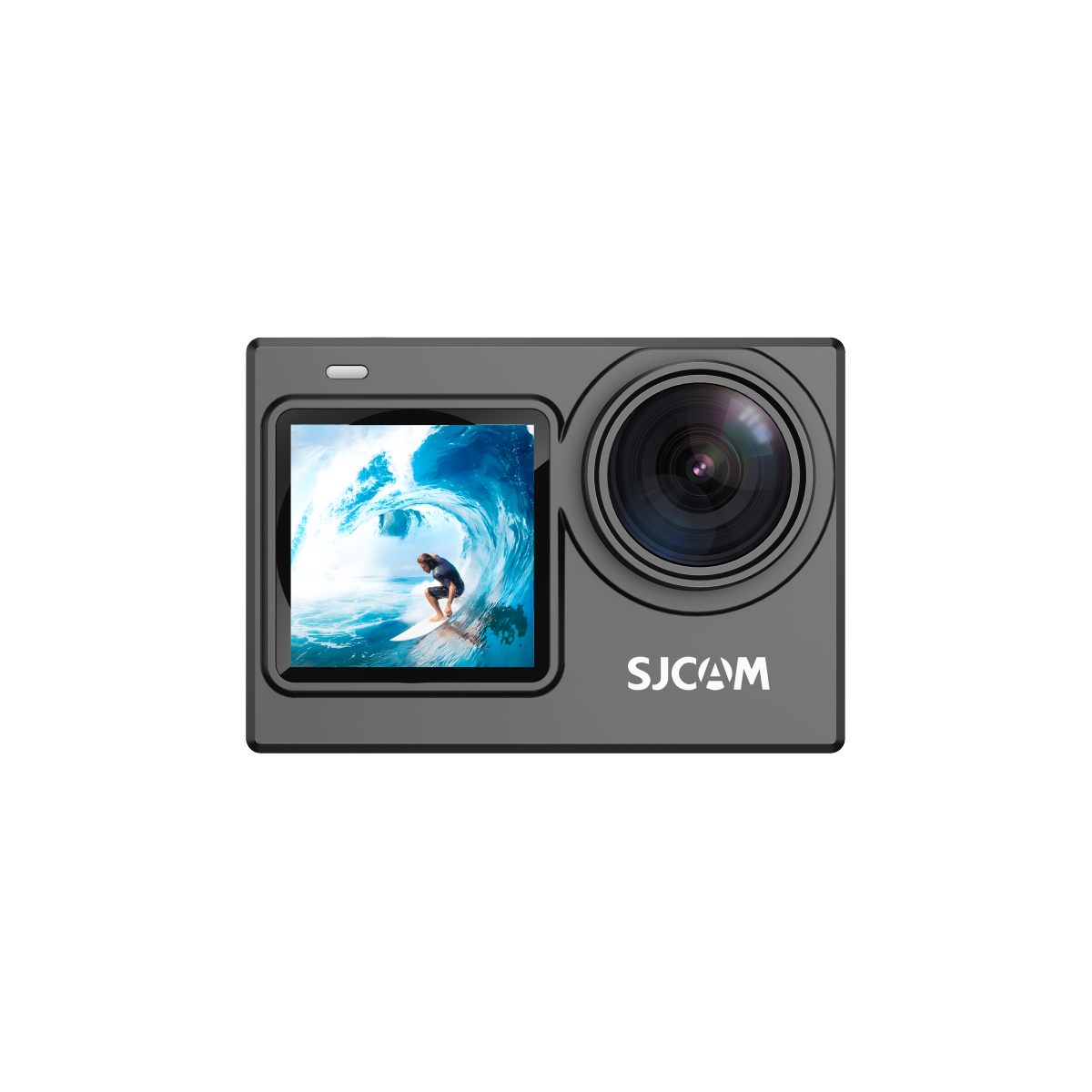
You can also find the M4 wireless microphone, extra batteries, and other compatible accessories on the same site.

With the correct setup, the SJ6 Ultra becomes a reliable and flexible tool for capturing high-quality footage whenever inspiration strikes. Enjoy your next adventure!


